On this page, you will learn how to find the surgeons and the protocols in the Incision Assist app.
To access the protocols, simply click on Browse. This screen pops up as soon as you open the Assist app. All of the protocols that are in the Assist app are based on your hospital’s pref cards and checked by your team leads or the person responsible for the preference cards.
1. Using the Browse Page
On the search screen, you’ll find all the specialists, the specialties, device guides, and the 3D anatomy models.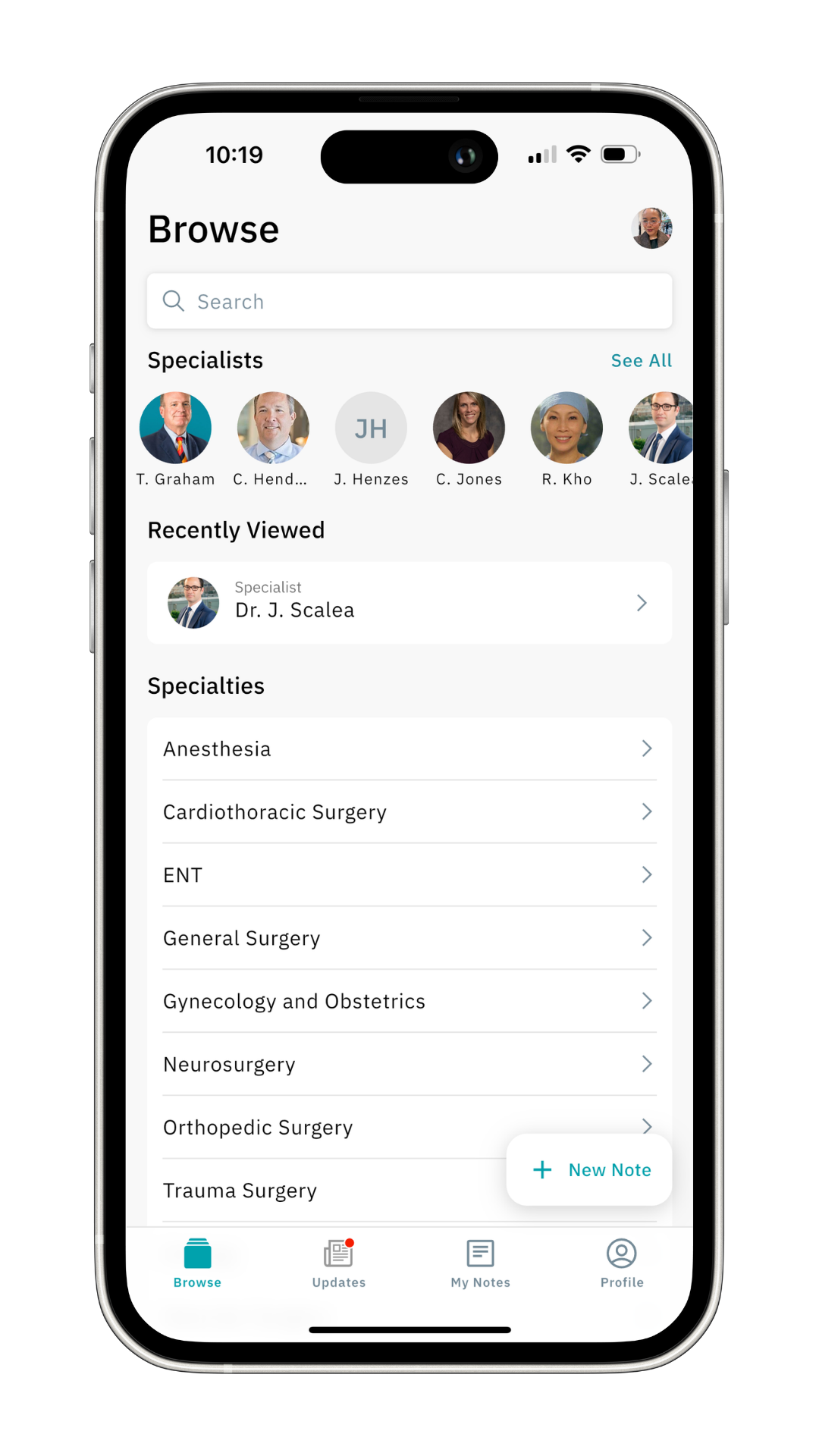 If you tap the search bar at the top of your screen, you can look for protocols or navigate through different categories like specialists or draping methods.
To return to the Browse home screen, just hit Cancel in the top right corner.
2. Viewing Specialists
On the Browse page, you’ll find a lineup of specialists at the top. Swipe through the specialists, and for more details, click their icon. To see a list of all specialists, click 'See All'.
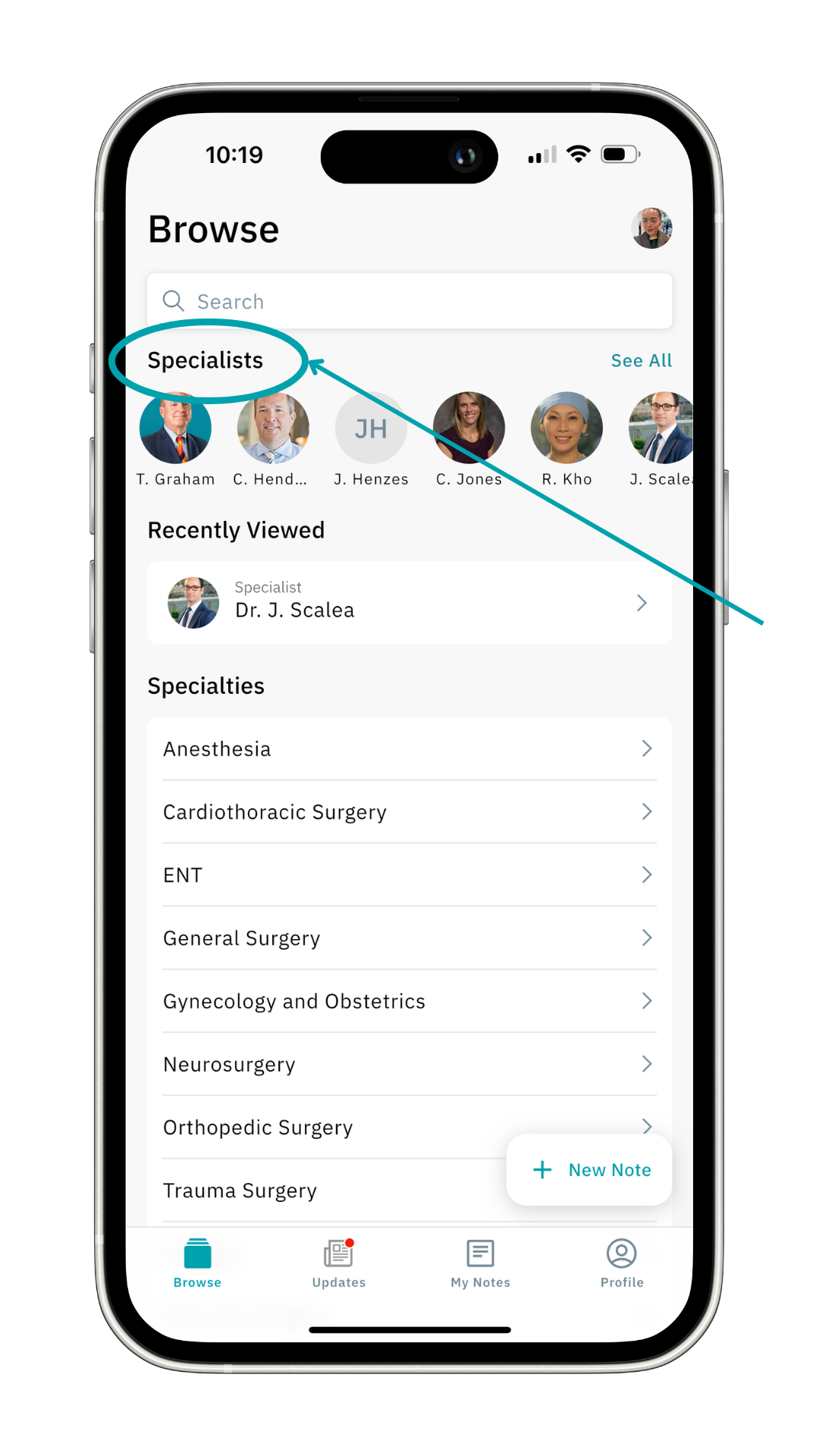 You can find information about for example the specialists' specialty, glove size, notes you have added for this specialist, and the protocols that are related to this specialist.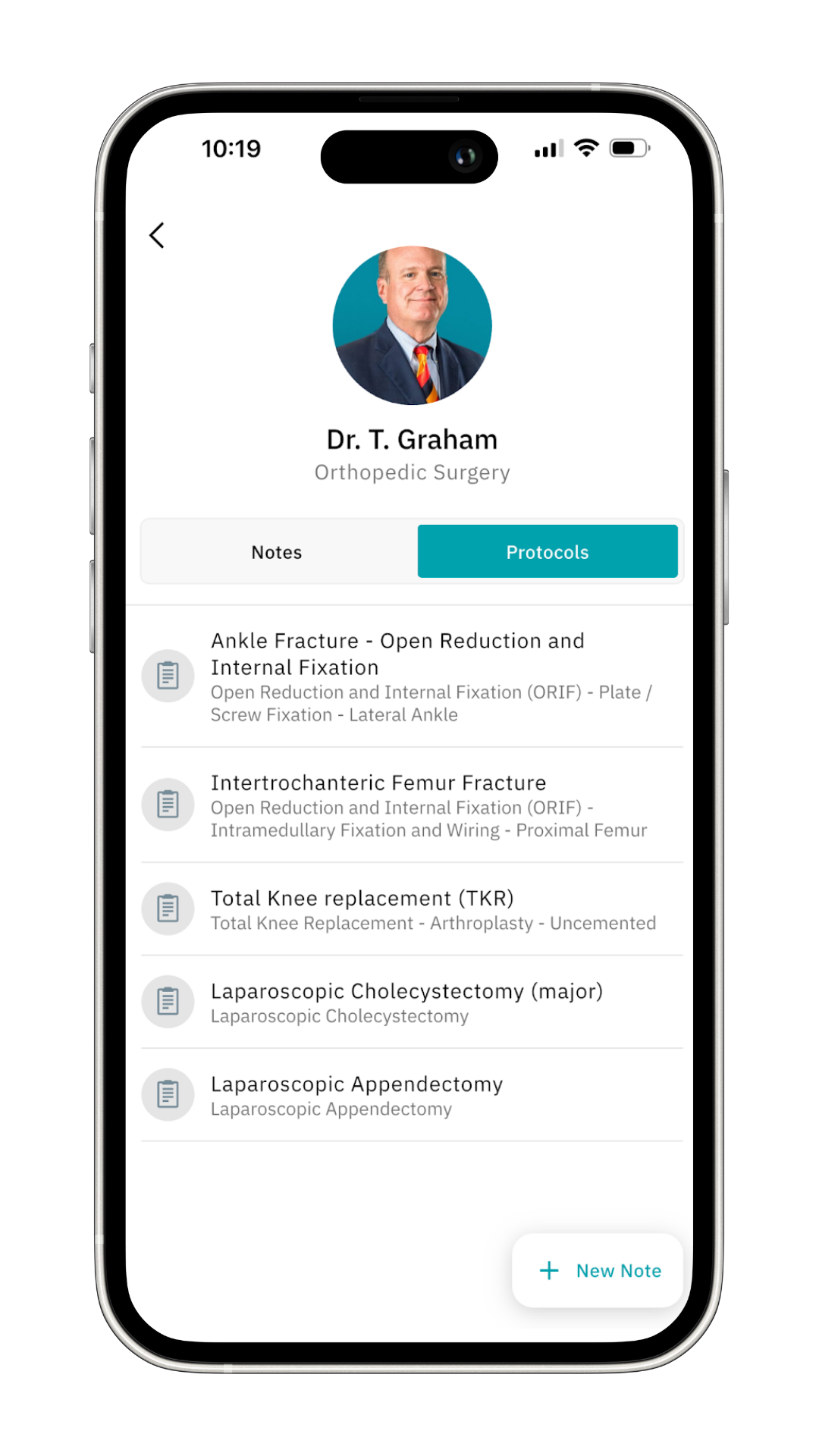
To go back, hit the top left or swipe back.
3. Exploring Specialties
Scroll down slightly on the Browse page to view all available specialties. Tap on a specialty to see the associated procedures that are entered in Incision Assist. Want to learn more about what a protocol looks like? Check out the article: “Incision Assist Guide: Dive into Protocols.”
4. Devices & Anatomy
At the bottom of the Browse page, you’ll find the Devices and Anatomy sections. Learn more in our articles: “Incision Assist Guide: Devices” and “Incision Assist Guide: Anatomy.”
Want to know more? Browse our other articles to get the most out of Incision Assist!
Was this article helpful?
That’s Great!
Thank you for your feedback
Sorry! We couldn't be helpful
Thank you for your feedback
Feedback sent
We appreciate your effort and will try to fix the article