This guide explains how to create and customize 3D OR room setups and patient positioning in a protocol and how to add 3D OR setups to the library in the Incision Assist Manager.
Accessing the 3D OR Setup and Patient Positioning Section
- Navigate to the Desired Protocol: Select the protocol you wish to edit.
- Open the OR Setup and Patient Positioning Tab: In the left-hand menu, click OR Setup and Patient Positioning.
- Create a 3D OR Setup:
- Click '+ New OR Setup' to create a 3D setup from scratch, or click '+ Add OR Setup from Library' to use one from the library. For frequently used (e.g., standard supine patient) or complex setups (e.g., robotic procedures with many devices), it can be best ,to create the setup in the Content Library first. You can then easily add it to the protocol via '+ Add OR setup from Library'. At the end of this guide we will explain how to add a 3D setup to the Content Library.
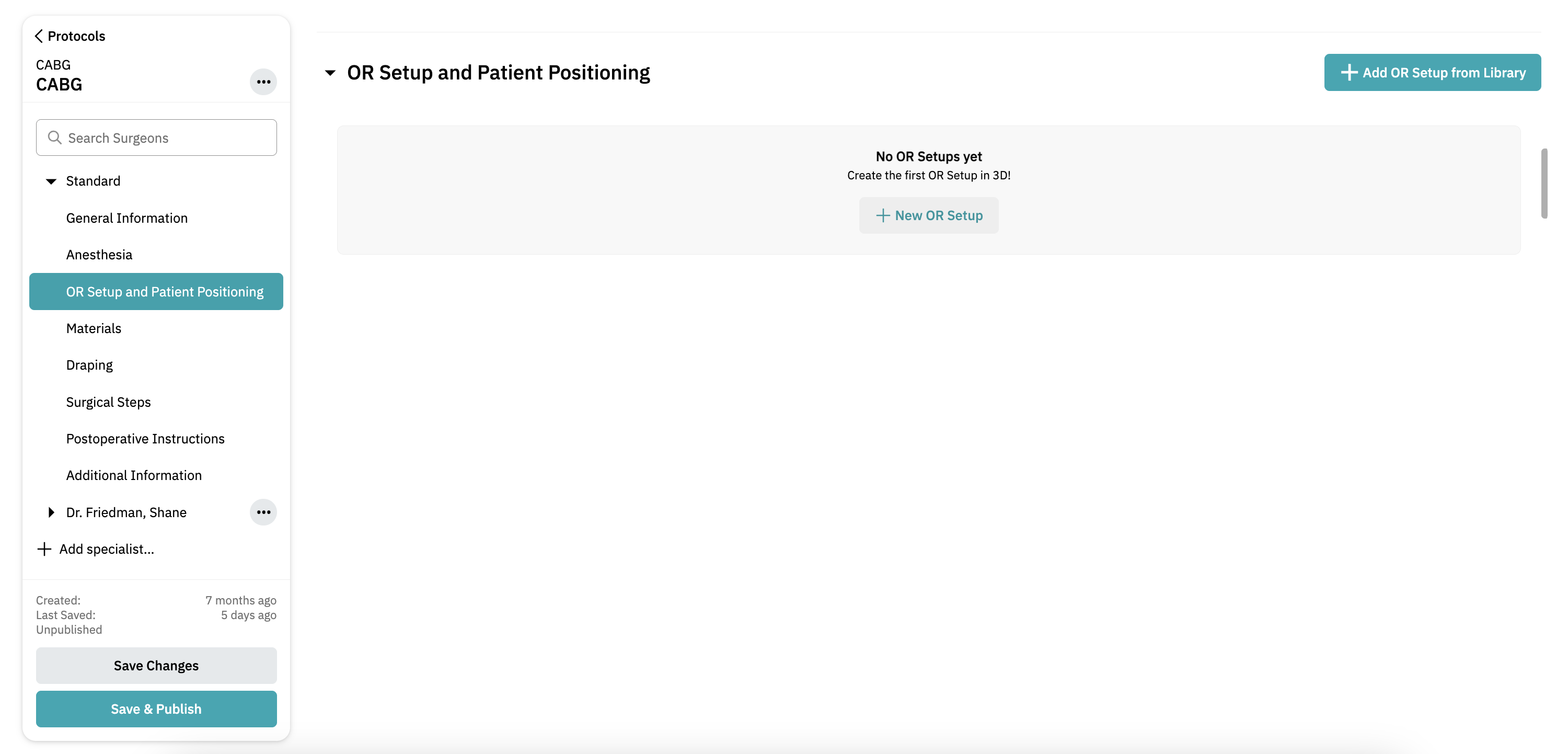
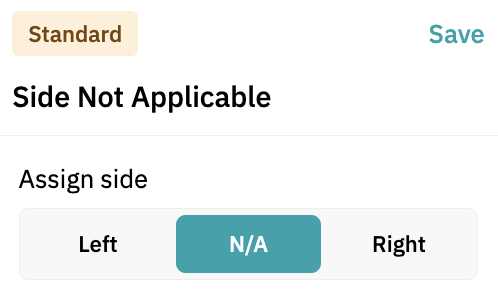
- Choose side: Left, Right, or Not Applicable: Some procedures require the surgeon to operate from a specific side. You can set up the 3D OR for:
- Left side
- Right side
- Not applicable (select 'N/A')
- You can copy and mirror setups after creating one for the left or right side. Scroll down to the end of this article to read how to do this.
Customizing the 3D OR Setup and Patient Positioning
General Comments
Add a general comment for the 3D OR setup and patient positioning to provide context or specific notes.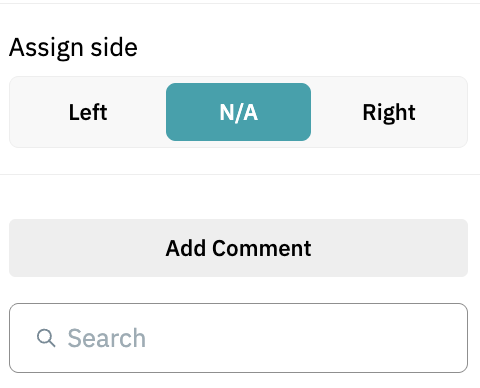
Editing Items
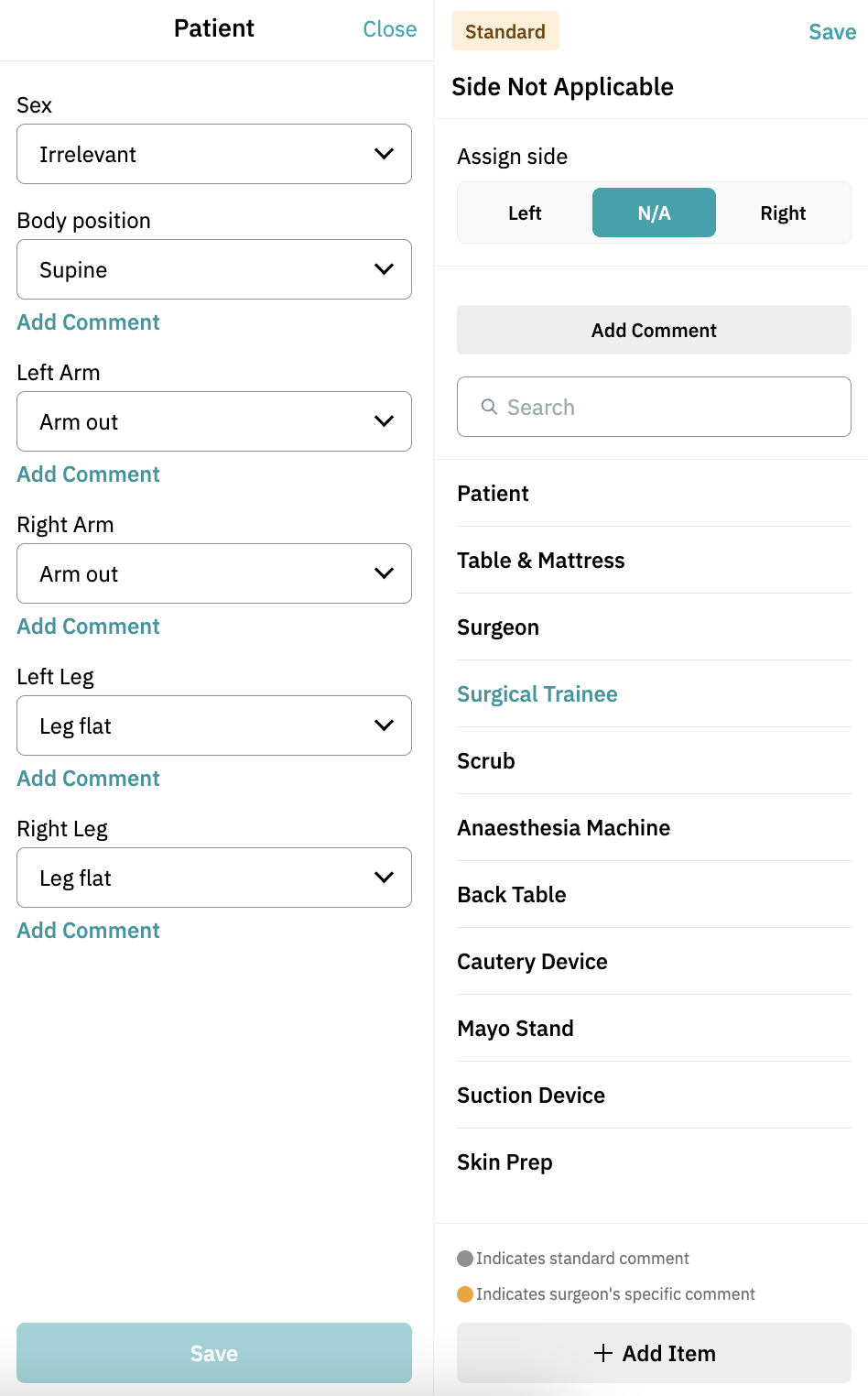
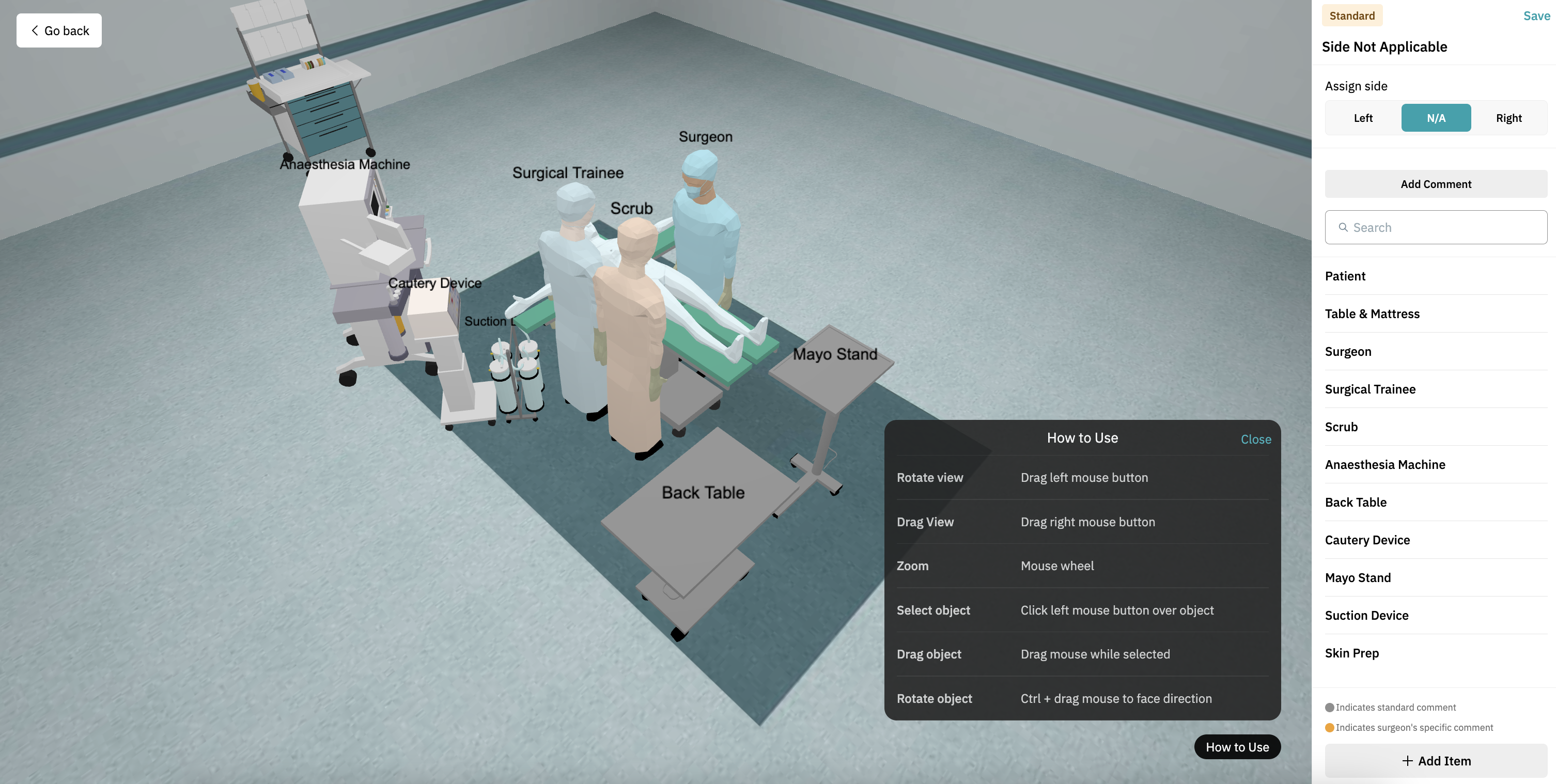
You can adjust the following items within the 3D OR setup:
Patient
Table & Mattress
Surgeon
Surgical Trainee
Scrub
Anesthesia Machine
Back Table
Cautery Device
Mayo Stand
Suction Device
Skip Prep
How to Edit Items:
Click on an item to open its settings.
Modify the fields as needed.
Click 'Add Comment' to include any extra information, for example the patient positioning or settings of a device.
Click 'Save' at the bottom right to store your changes.
Note: To save the complete OR Setup and Patientpositioning you have to click 'Save' at the top right of your screen!
Adding New Items
- Besides the standard items, you can also add extra items (e.g., devides or extra personel) to the OR setup. personnel
- Click '+ Add Item' at the bottom right.
- Select from available devices or staff members.
Note: You can also add custom devices. These devices must first be added to the Device Library. For more information, see How to Add a Device to the Content Library and Include it in an OR Setup in the Incision Assist Manager.

Deleting Items
Locate the item you wish to remove in the menu on the right.
Click the three dots on the right of the item.
Select 'Delete'.
Note: The Patient and Table & Mattress cannot be deleted.

Moving and Adjusting Items in the 3D Environment
In the 3D model, you can manually move and position items to fine-tune the OR setup and ensure accuracy.
- Moving an item: Click an item to select, drag it to a new location, and click again to place.
- Rotating the view: Click and hold on the background, then move your mouse.
- Rotating an item: Click the item, hold 'Ctrl', and move your mouse to rotate.
- Tip: Click 'How to Use' at the bottom right for a full overview of all 3D controls.
Saving, Copying & Deleting OR Setups
When you’re satisfied, click 'Save' at the top right. Now click 'Go Back' at the top-left to go back to the overview page. You can now create additional 3D setups.
- To create a new 3D setup, click '+ New OR Setup' or '+ Add OR Setup from Library'.
- To copy or mirror an existing 3D setup, click the three dots next to the setup and choose 'Copy' or 'Copy & Mirror'. Copy & Mirror is ideal for switching the left/right versions.
- To delete a 3D setup, click the three dots on the right and select 'Delete'.
Saving and Publishing
Don’t forget to save and publish your protocol to ensure the 3D OR setup is available in the Incision Assist app.
Adding a 3D OR Setup to the Content Library
You can create a base setup in the Content Library and reuse it in multiple protocols.
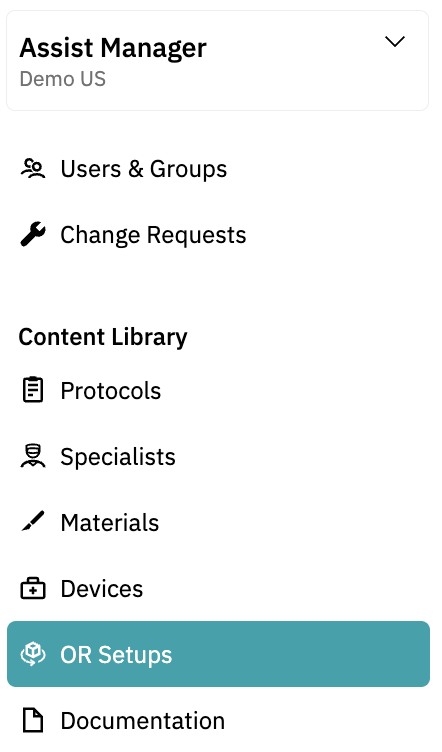
Go to the 'OR setups' section in the left-hand menu (make sure you're not in a protocol).
Click '+ New OR Setup' (top-right).
Follow the same steps as above
Add a name and save the setup
You can later modify, copy, or delete the setups from the library. Changes made in the library do not affect protocols where the setup is already used.
To add this saved setup to a protocol:
- Open the desired protocol
- Go to 'OR Setup and Patient Positioning'
- Click '+Add OR Setup from Library'.
By following these steps, you can efficiently create and customize 3D OR setups and patient positioning, ensuring your team has precise and up-to-date guidance for every procedure.
Want to learn more? Check out our other guides on how to use the Incision Assist Manager!
Was this article helpful?
That’s Great!
Thank you for your feedback
Sorry! We couldn't be helpful
Thank you for your feedback
Feedback sent
We appreciate your effort and will try to fix the article