On this page, you will learn more about the Anatomy section and its 3D models.
A bit further down the Browse page of Assist, you’ll find the Anatomy section.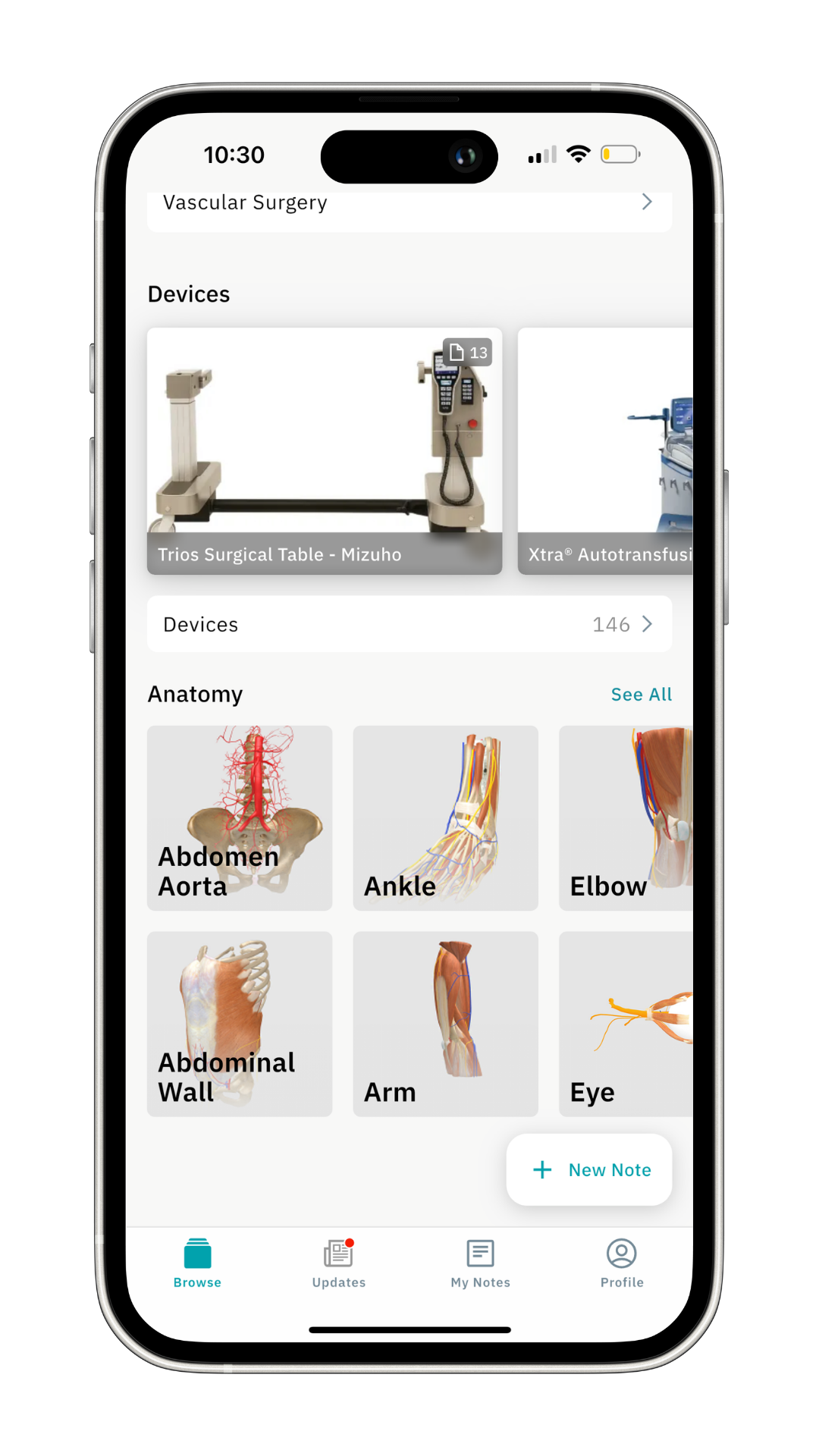
Click See All to explore all the 3D anatomy models.
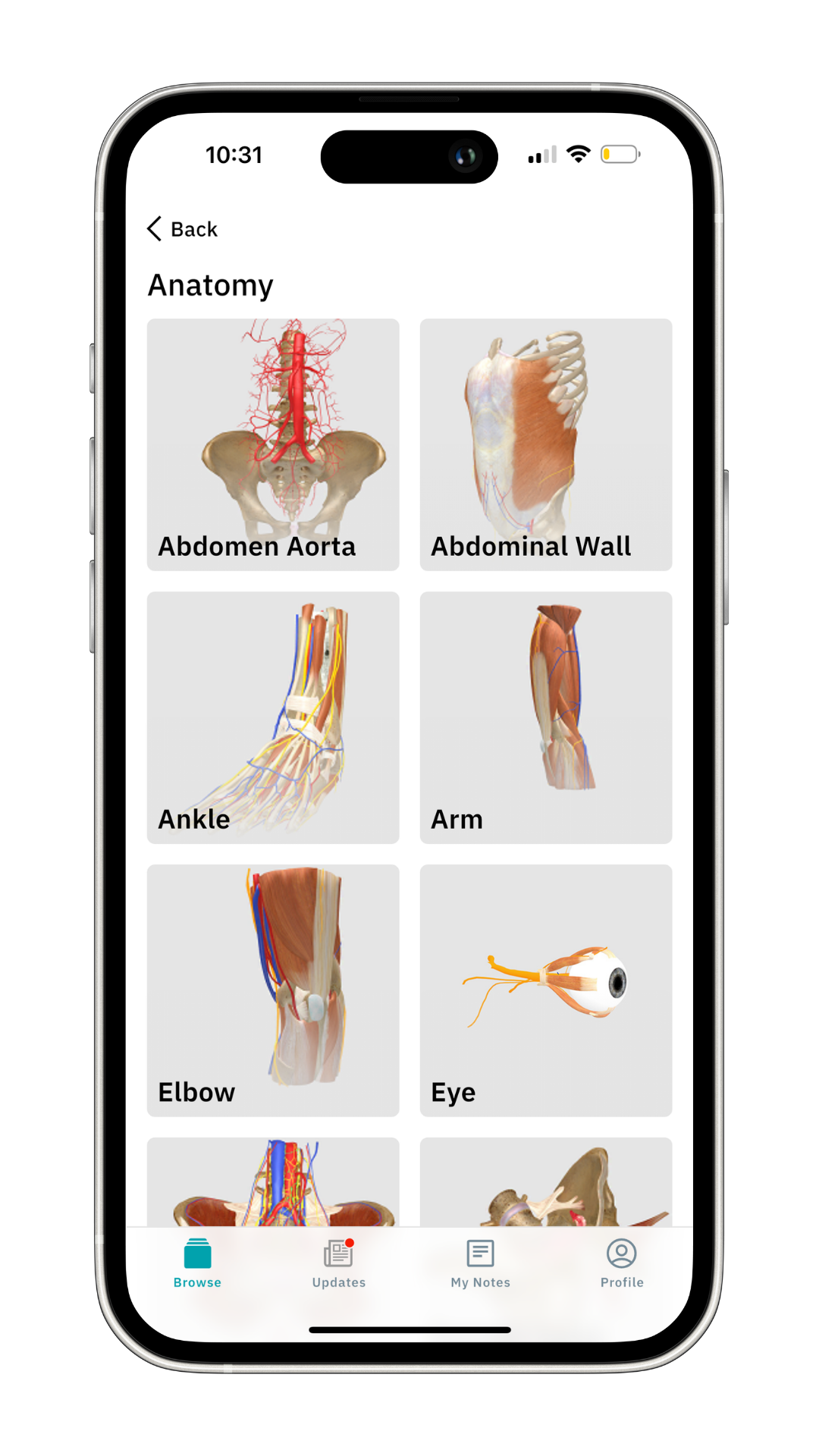
Let’s take a closer look at one of them: the ankle.
Now click on the ankle 3D model.
- Rotate it using your fingers, zoom in and out for a better view.
- If you click on a specific part, it will be highlighted in blue with the name displayed.
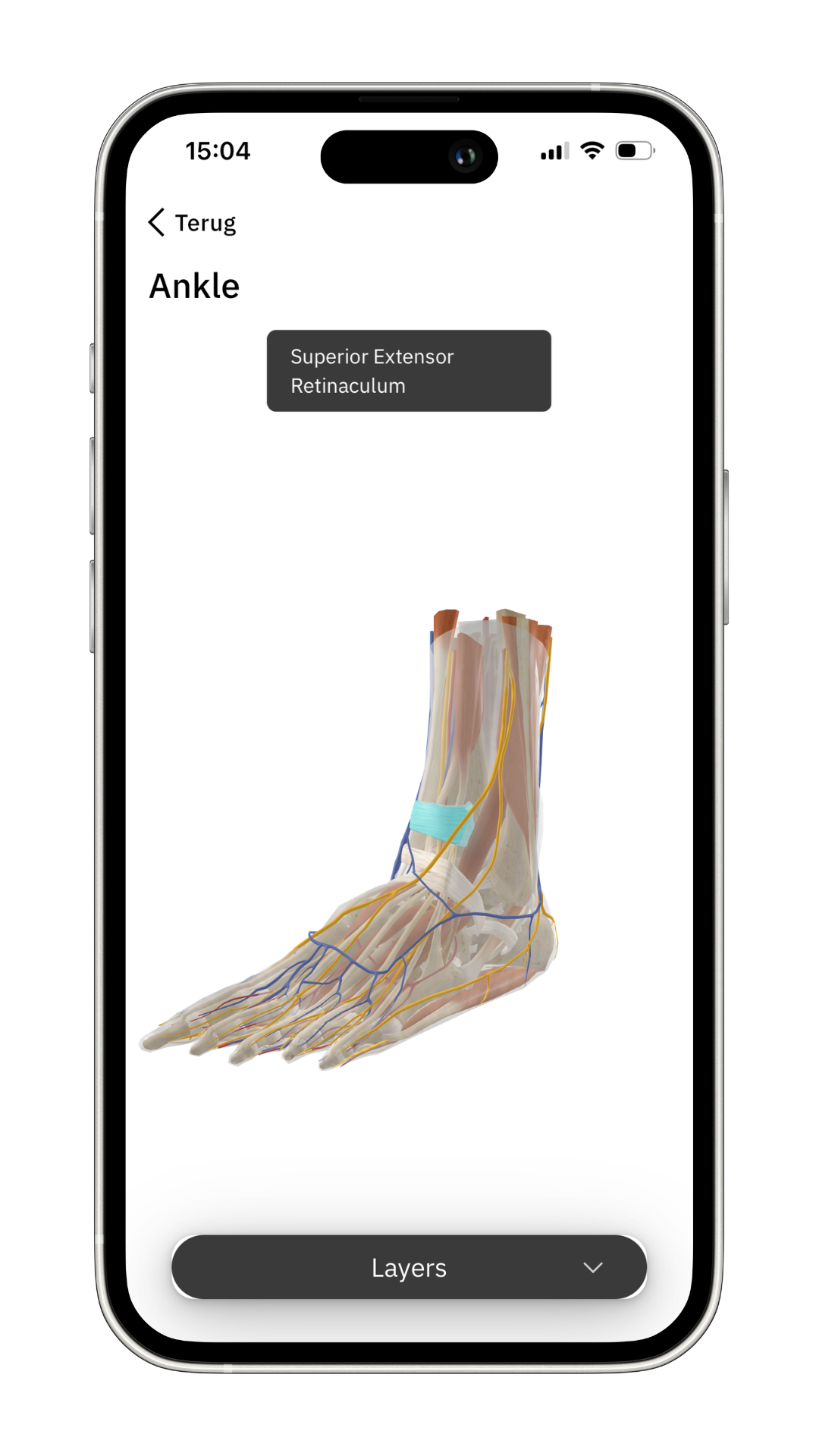
Our 3D anatomy models are structured so you can layer items on and off for a detailed study.
- Click Layers to reveal the different layers.
- For instance, click on the 'eye' next to Fascia to see it removed.
You can also filter on and off a specific item within a layer.
- Click the arrow next to Bones
- See the dropdown list of bones
- Choose one to remove from the 3D model by clicking on the 'eye'
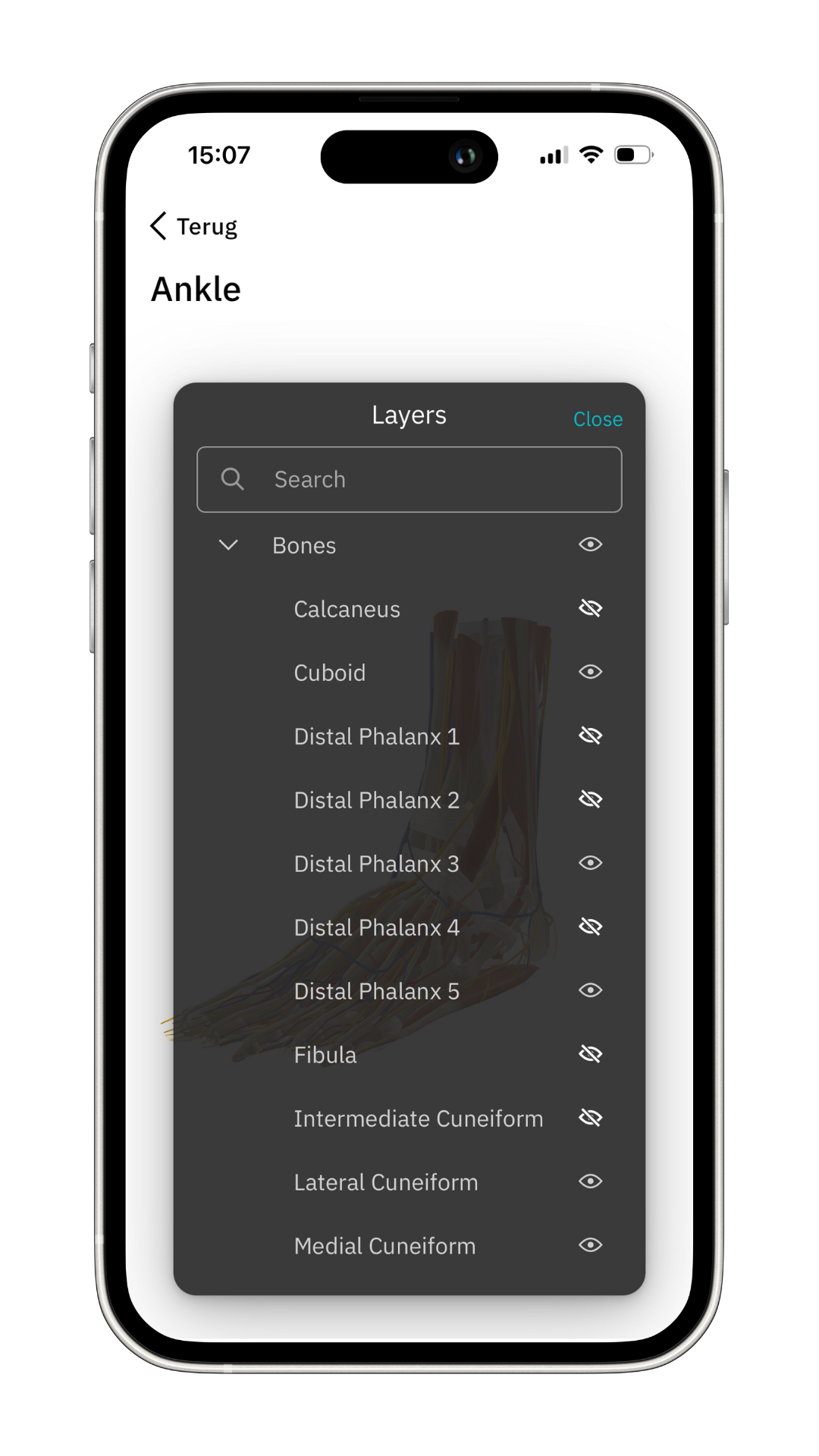
When you’re done, click Layers to see the 3D anatomy model again.
Click Back twice to return.
Check out our other articles for more tips and tricks on how to navigate the Incision Assist app.
Was this article helpful?
That’s Great!
Thank you for your feedback
Sorry! We couldn't be helpful
Thank you for your feedback
Feedback sent
We appreciate your effort and will try to fix the article