Below you'll find step-by-step instructions on how to add specialists to the Incision Assist Manager and how to record their preferences in the protocols. Important: You must first add a specialist to the Content Library.
Adding a Specialist to the Content Library
Before assigning specialists to protocols and recording their preferences, you must first add them to the Content Library.
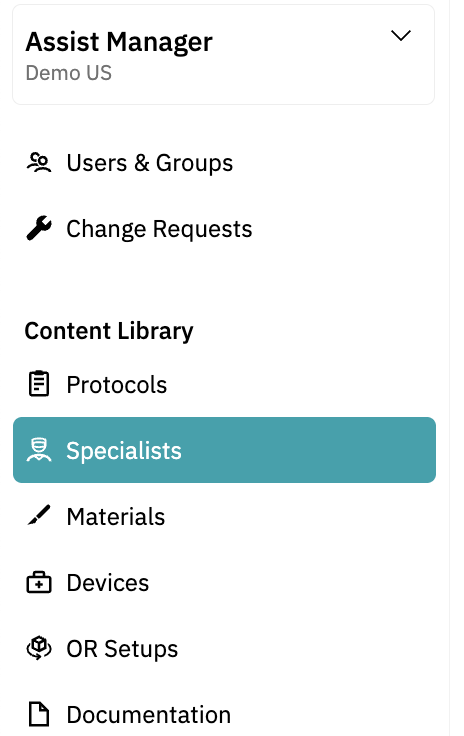
- Navigate to the Specialist Section: In the left-hand menu, select Specialist.
- Click "+ New Specialist" on the top right of your screen: This opens a form to enter the surgeon’s details.
- Fill Out Required Fields:
- Ensure the Family Name and Specialty fields are completed; these are mandatory.
- Add other relevant information as needed.
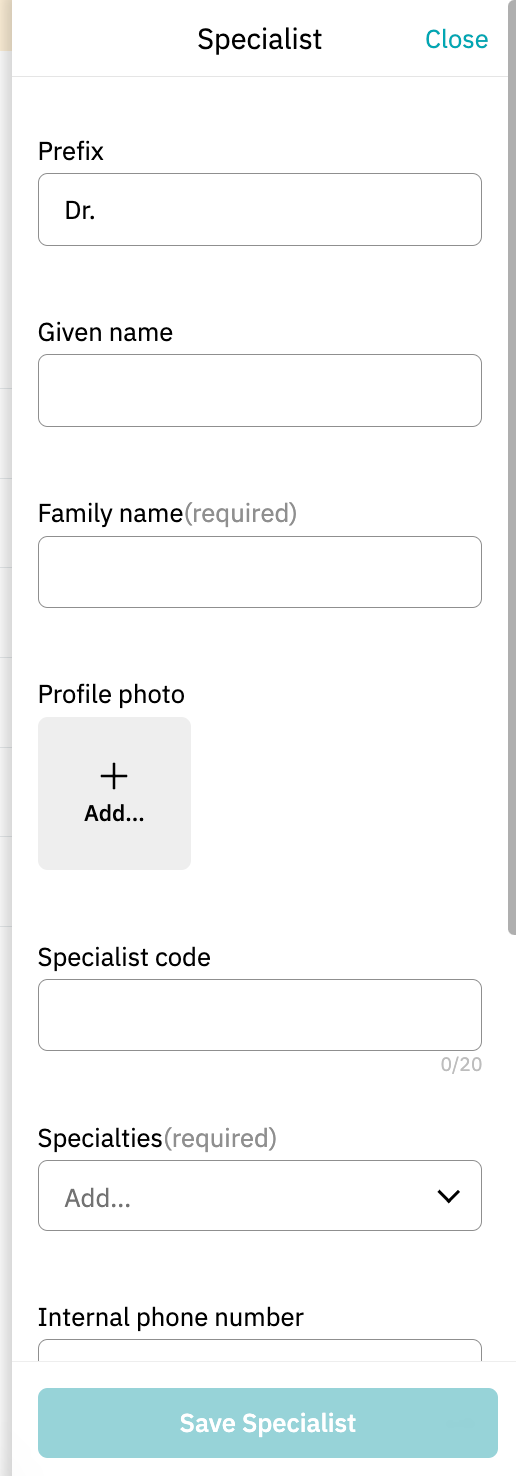
- Save the Specialist: Once all information is entered, click 'Save Specialist'.
You only need to add a specialist once to the Content Library. You can then assign them to multiple protocols as needed.
Editing or Deleting an Existing Specialist:
If you need to update or delete a specialist's information:
- Locate the Specialist in the Specialists section.
- Click the three dots on the right-hand side.
- Select 'Edit' and make your changes.
- After you have edited the specialist, click 'Save Specialist' to ensure updates are stored.
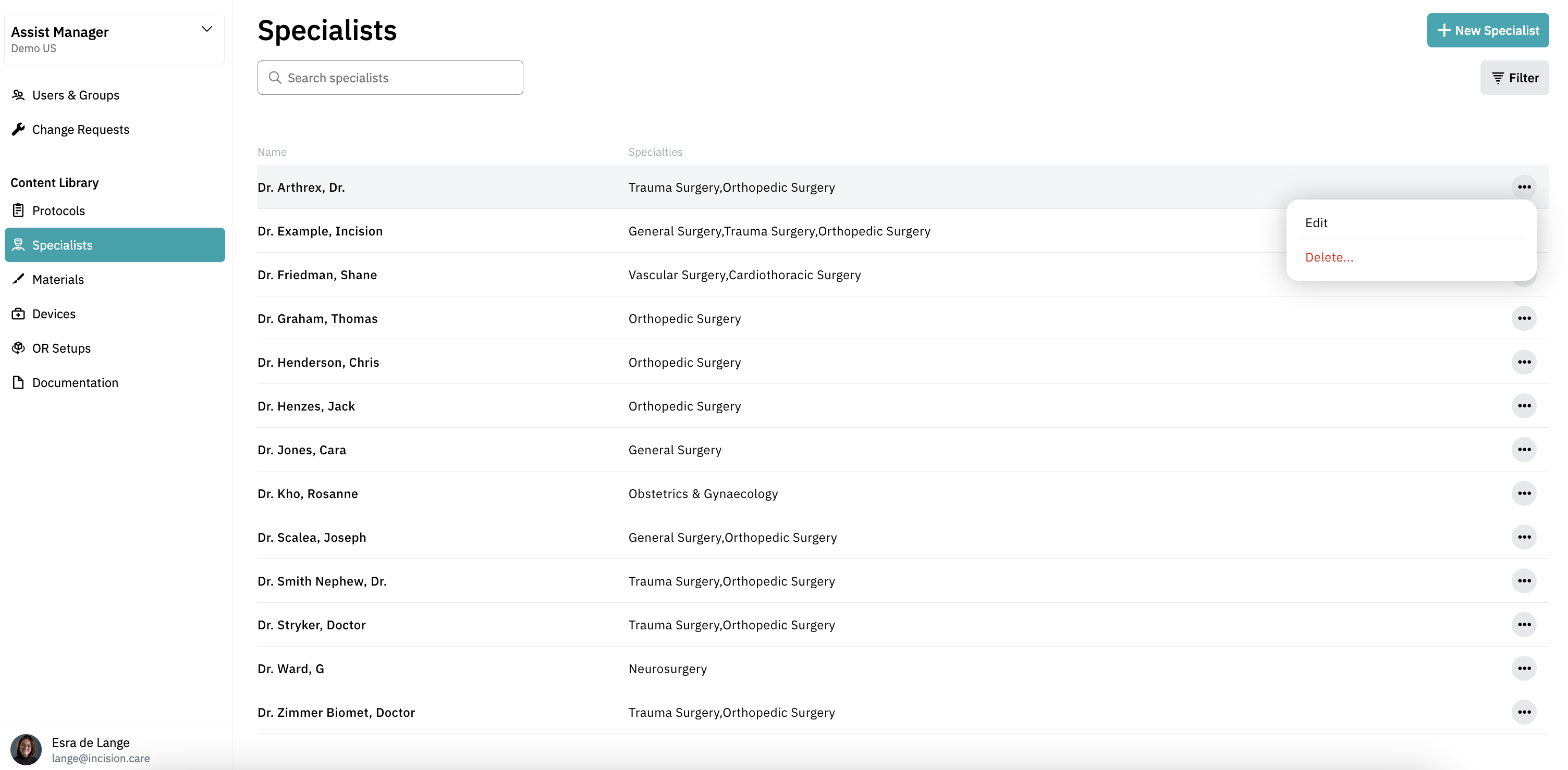
- To delete a specialist, click the three dots and select 'Delete'.
Adding Specialist Preferences in Protocols
Now that your surgeons are added, you can start capturing their preferences within relevant protocols.
Steps to Add Specialist Preferences:
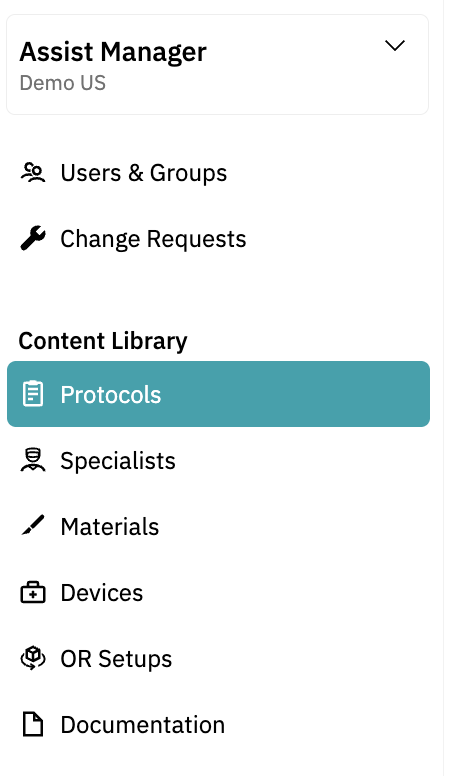
- Navigate to the Protocols Section: In the left-hand menu, select Protocols.
- Search for the Procedure: Identify the protocol for the procedure you want to customize.
- Tip: Creating a strong foundation begins with the standard protocol. A specialist-specific list will automatically copy the standard protocol, so it’s best to finalize the standard version first. Then, you can easily tailor it to match the specific needs or preferences of individual surgeons.
- Add the Surgeon to the Protocol:
- Open the procedure.
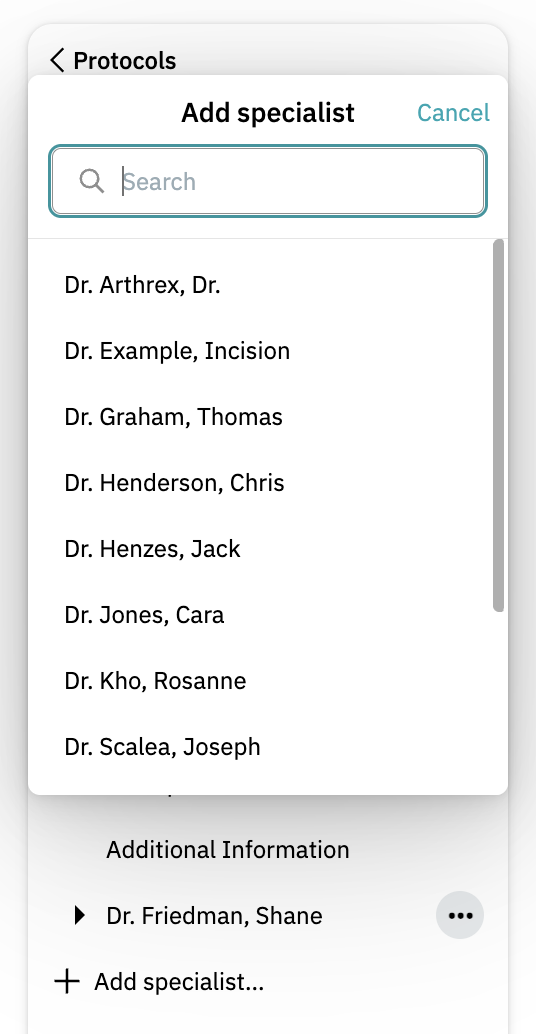
- In the left-hand menu, click "+ Add Surgeon".
- Use the search bar to find and select the appropriate surgeon.
- Once added, the specialist-specific list is automatically copied from the standard protocol.
Customize the Specialist's Preferences:
You can now customize the protocol for this specialist. The process differs per tab:
- General Info: Enter the surgeon's preferences in the 'Surgeon Preference' text field.
- Anesthesia: Add preferences in the 'Surgeon Preference' field.
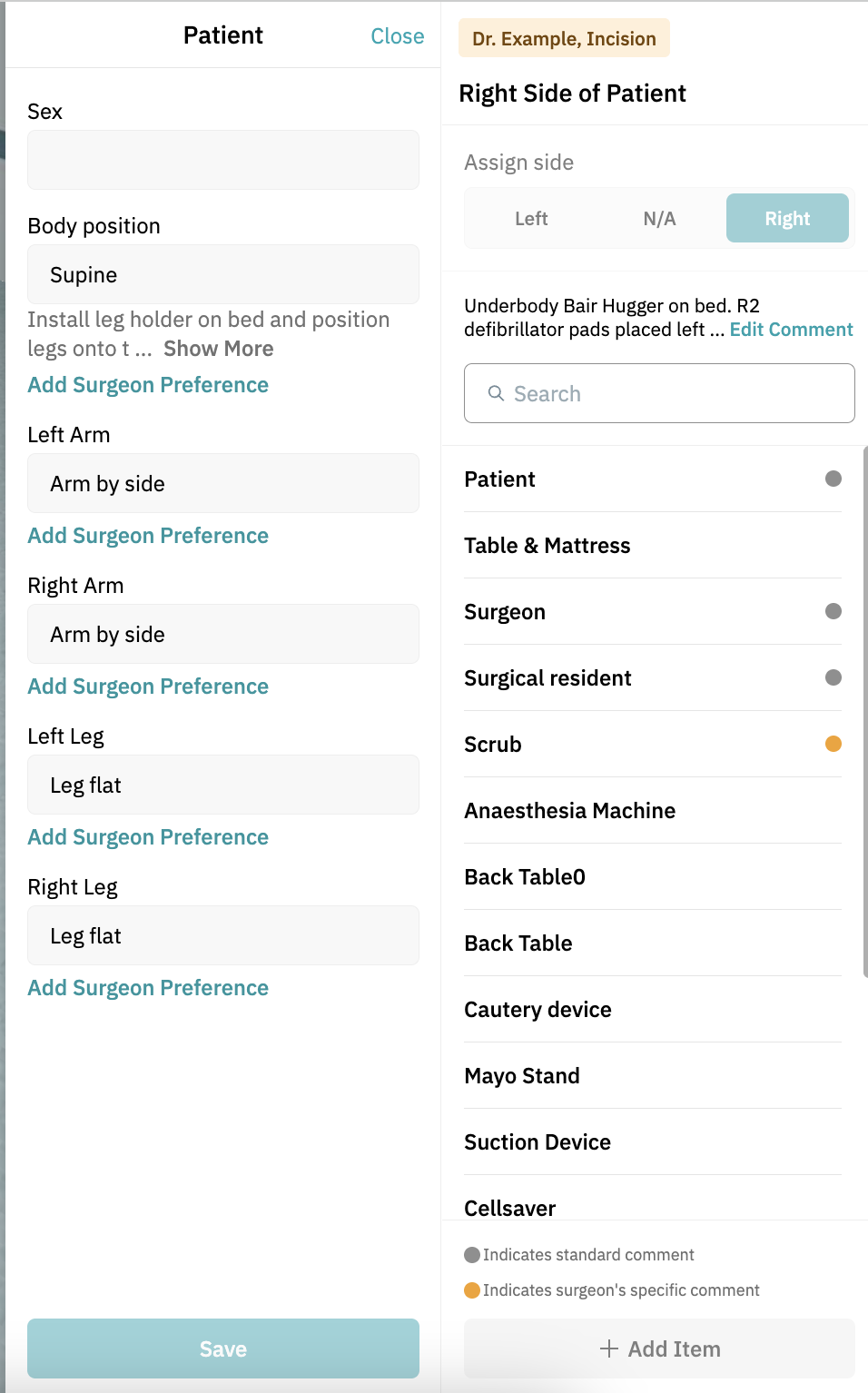
- 3D OR Setup and Patient Positioning: Add comments to items by clicking the item and selecting 'Add Surgeon Preference'. Don't forget to save the 3D OR setup afterward!
- Materials: You can now:
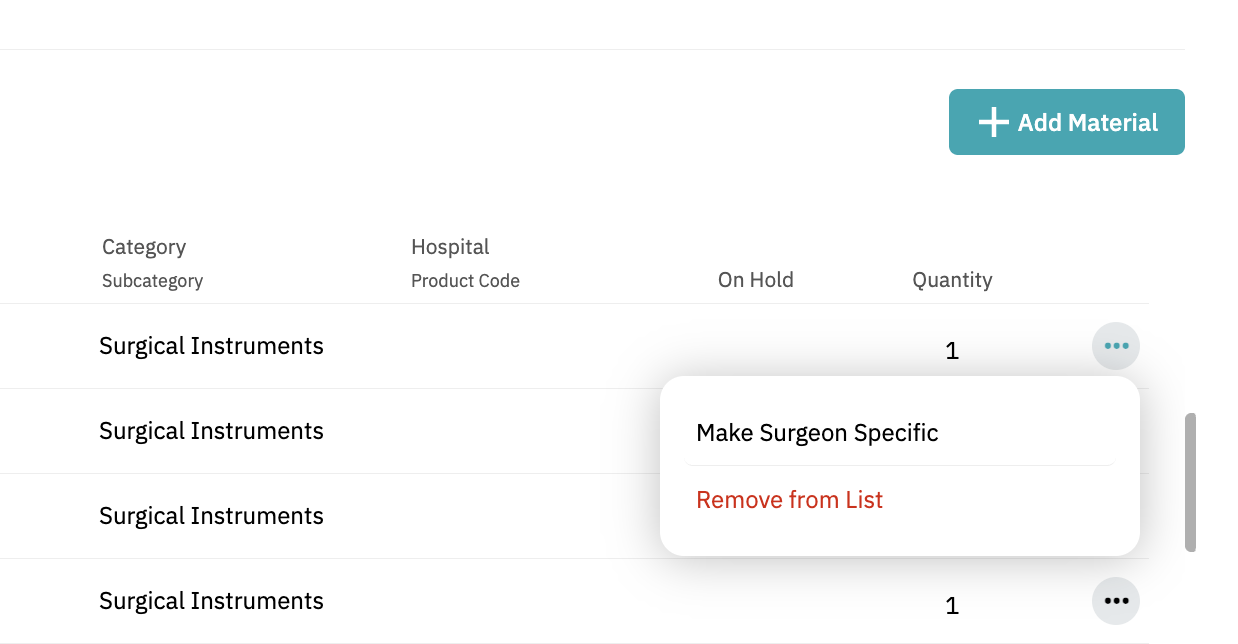
- Add new materials for the specialist by clicking '+ Add Material', or
- Click the three dots next to the item, then click 'Make Surgeon-Specific'. Note: This will disconnect the item from the standard list.
- Orange dots will indicate that the item is a custom preference.
- Draping: Add preferences in the 'Surgeon Preference' text field.
- Surgical Steps: You have two options here:
- Add short preferences in the 'Surgeon Preference' text box.
- For completely different instructions: use the large text box to replace the standard content. Note: If left empty, users will see the standard protocol surgical steps. If filled, these surgeon-specific surgical steps are marked with an orange dot.
- Postoperative Instructions: Use the 'Surgeon Preference' field.
- Additional Information: Use the 'Surgeon Preference' field.
Finalizing and Saving Preferences:
Review all edits.
Save your changes: Click 'Save Changes'.
Click 'Publish' to make the protocol and specialist preferences available in the Incision Assist app and web.
By following these steps, you can efficiently add specialists and manage preferences, ensuring your colleagues are always prepared with precise and up-to-date information.
Want to learn more? Check out our other guides on how to use the Incision Assist Manager!
Was this article helpful?
That’s Great!
Thank you for your feedback
Sorry! We couldn't be helpful
Thank you for your feedback
Feedback sent
We appreciate your effort and will try to fix the article