The General Information section of a protocol allows you to name the protocol, specify the associated procedure, and add an indication. Completing this section ensures protocols are clearly identified and easily managed. This guide explains how to add the General Information.
Adding or Editing General Information
Steps to Access the General Information Tab:
- Navigate to the Desired Protocol: In the left-hand menu, select the protocol you wish to edit.
- Open the General Information Tab: In the left-hand menu of the selected protocol, click on General Information.
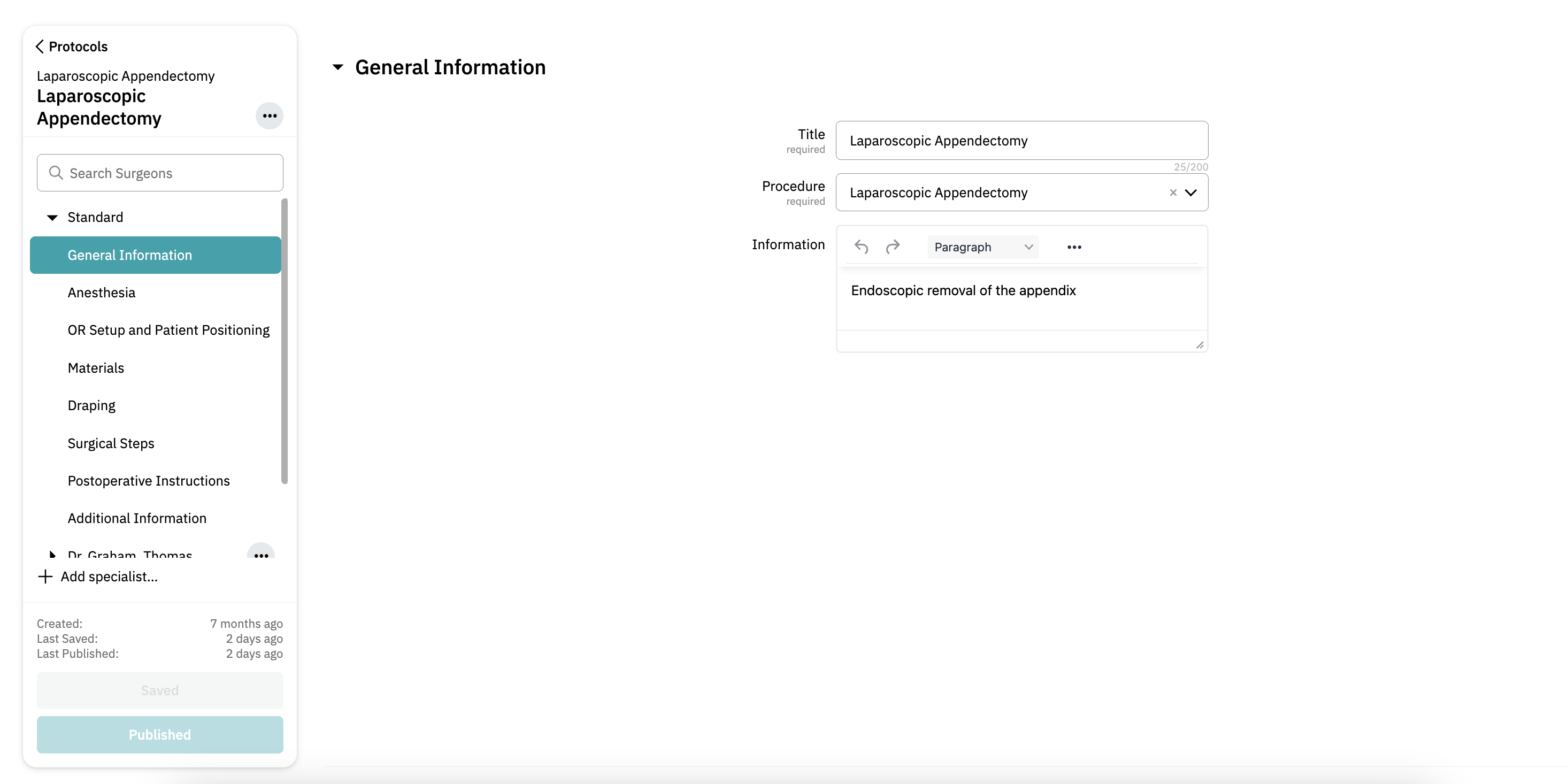
Filling Out the Required Fields:
Protocol Name: Provide a clear and descriptive name for the protocol.
Procedure: Specify the procedure this protocol applies to.
Information: Optionally, include information to give more context about when this protocol is used.
Note: Most important information can be included in the other sections of the protocol. There is also a separate tab called 'Additional Information'.
- The Protocol Name and Procedure fields are mandatory. You won’t be able to save the protocol without completing these fields.
Saving and Publishing:
Once you’ve filled in the necessary information, click 'Save' to store your changes.
To make the protocol available in the Incision Assist app and web, click 'Publish'.
By keeping the General Information tab updated, you ensure your protocols are well-organized and accessible for your colleagues.
Want to learn more? Check out our other guides on how to use the Incision Assist Manager!
Was this article helpful?
That’s Great!
Thank you for your feedback
Sorry! We couldn't be helpful
Thank you for your feedback
Feedback sent
We appreciate your effort and will try to fix the article